Everything you need to know about your E-tickets is here. Capital Theatres uses VisitOne for digital ticketing, and these guides will help you make the most of it.
Your tickets, made simple
Our ticketing system uses an additional piece of software called VisitOne to provide this functionality. Below we’ll detail how this software helps improve your visit. If you get stuck, don’t hesitate to get in touch.
E-ticket delivery
When you buy tickets for any of our shows, you’ll automatically receive an E-ticket email with a link to the VisitOne tickets. If you book well in advance, you may also see an option to have physical tickets posted to you, but you’ll still get the E-ticket email either way.
Please note we also send a Pre show email ahead of your visit to the theatre, this is not your ticket email but rather an email with extra information about the performance or event your attending, including things like Running time, show information, access information, etc.
Reminders before your visit
Up to 48 hours before your performance, we’ll send you a reminder with a link to your tickets. If we have a mobile number on your account, we’ll send this by text message. Otherwise, it’ll arrive by email. You can update your account with a mobile number if you would prefer to recieve them via text in future.
If you just need to find your tickets quickly, you can also download them from the My Account section of our website. Please note that these are just your tickets, they don’t include the other VisitOne functions such as pre-ordering interval drinks – they have the same QR code though and will work as normal.
Using your E-ticket at the venue
You don’t need to print anything, just show your ticket on your phone or device at the door. If you do prefer a printed copy, please just make sure the QR code is clearly visible when you print it at home.
Adding tickets to Apple or Google Wallet
When you receive your tickets email, click the button Download your tickets. You’ll then be taken to the VisitOne homepage for your event. Click the My Tickets button, if you’re on a mobile device then below the QR code you will see two buttons, one to add the tickets to your Apple Wallet and another to add them to your Goggle Wallet.
Transferring a ticket to someone else
VisitOne allows you to easily share tickets from your booking with other members of your party. On the web app homepage click My Tickets, then click Share. From there, select the ticket you’d like to share and tap the share icon (a small square with a diagonal arrow).
You’ll then be prompted to enter the recipient’s first and last name before tapping Continue. A unique link will then be created that you can send to your contact. Please note that while the recipient hasn’t yet accepted, you can still cancel the transfer. However, once they accept, the transfer cannot be undone and the ticket will appear greyed out on your end.
Receiving a ticket that someone else has sent you
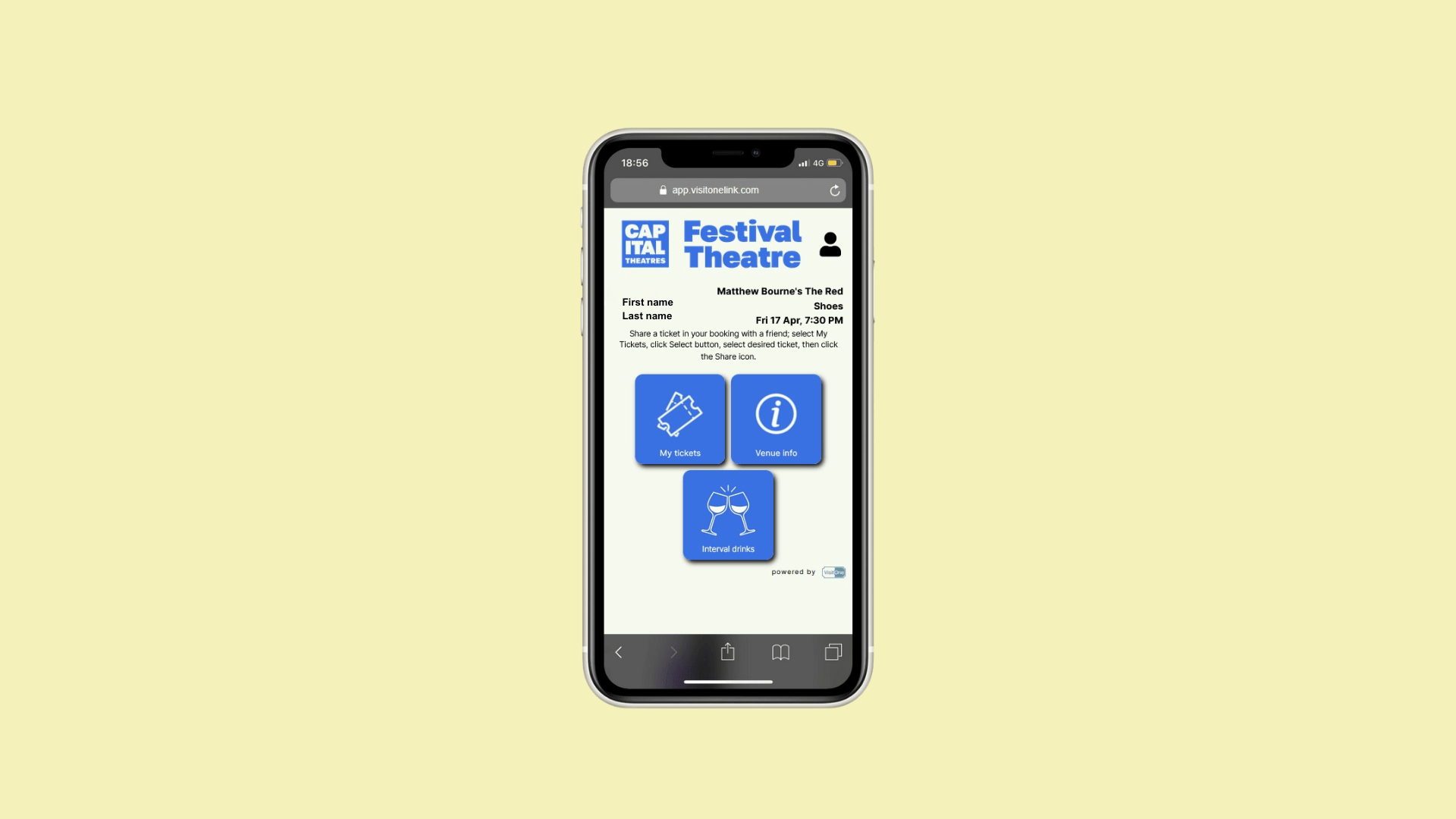
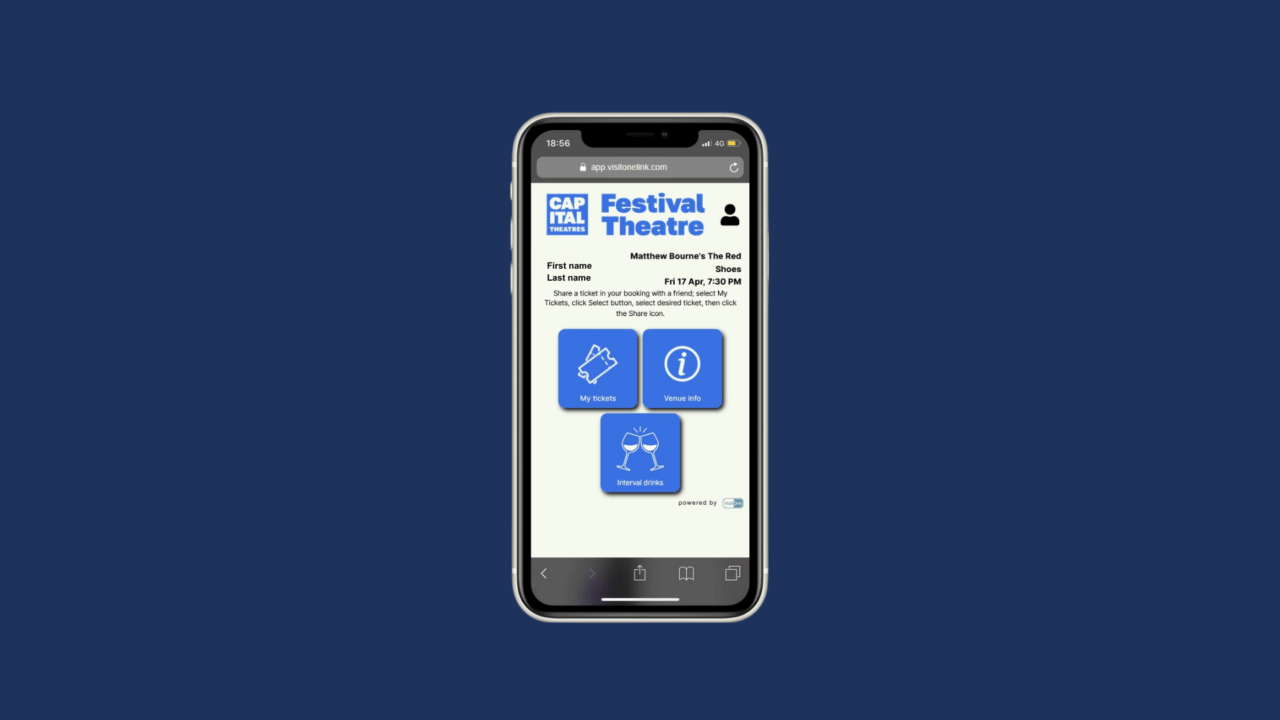
You’ll receive a text message with a VisitOne link, tap it to open. You’ll then be asked to accept or reject the ticket. Tap Accept and then enter your email address and mobile number. Tap Continue and confirm your contact preferences. You’ll then be taken to the VisitOne homepage (pictured above), where you can access your tickets, venue information, and more.
Please note, your details are covered by our privacy policy – you can update these at any time by either creating an account or contacting us.
Pre-ordering Interval drinks
Via the VisitOne homepage you can skip the queues and pre-order refreshments from our bar menu ahead of your visit. If your show or event has an interval the VisitOne homepage will display the Interval drinks button. Click the button and you’ll be able to browse our bar menu and add items to your basket.
When ready to complete your transaction, go to your Basket and follow the on-screen steps to check out. You can pay with Apple Pay, Google Pay, or by entering your card details. After ordering, you’ll receive an email receipt and your collection point will be shown on screen.
If you need to find your order again later or ahead of your visit, go back to the VisitOne homepage via the link in your tickets email or text, tap the Interval Drinks button and your order summary will appear.
Friends discounts
If you hold a valid Friends Membership linked to your account, your 20% discount will be applied automatically to any interval drink orders. Full terms and conditions.

FAQs
Find a list of our most frequently asked questions, from venue information, ticket queries, discounts and access.
Share your feedback
We’re always looking to improve the experience for our audiences. If you have any feedback, please email us at digital@capitaltheatres.com